
DeepSeek Integration
DeepSeek is an alternative AI provider that you can connect using your own API key. Unlike OpenAI, using DeepSeek does not consume the tokens included in your Interflow plan — billing is handled directly by DeepSeek, on your own account.
PAYMENT REQUIRED
You must add credits/payment method to your DeepSeek account to use the API, which works on a token-based usage model.
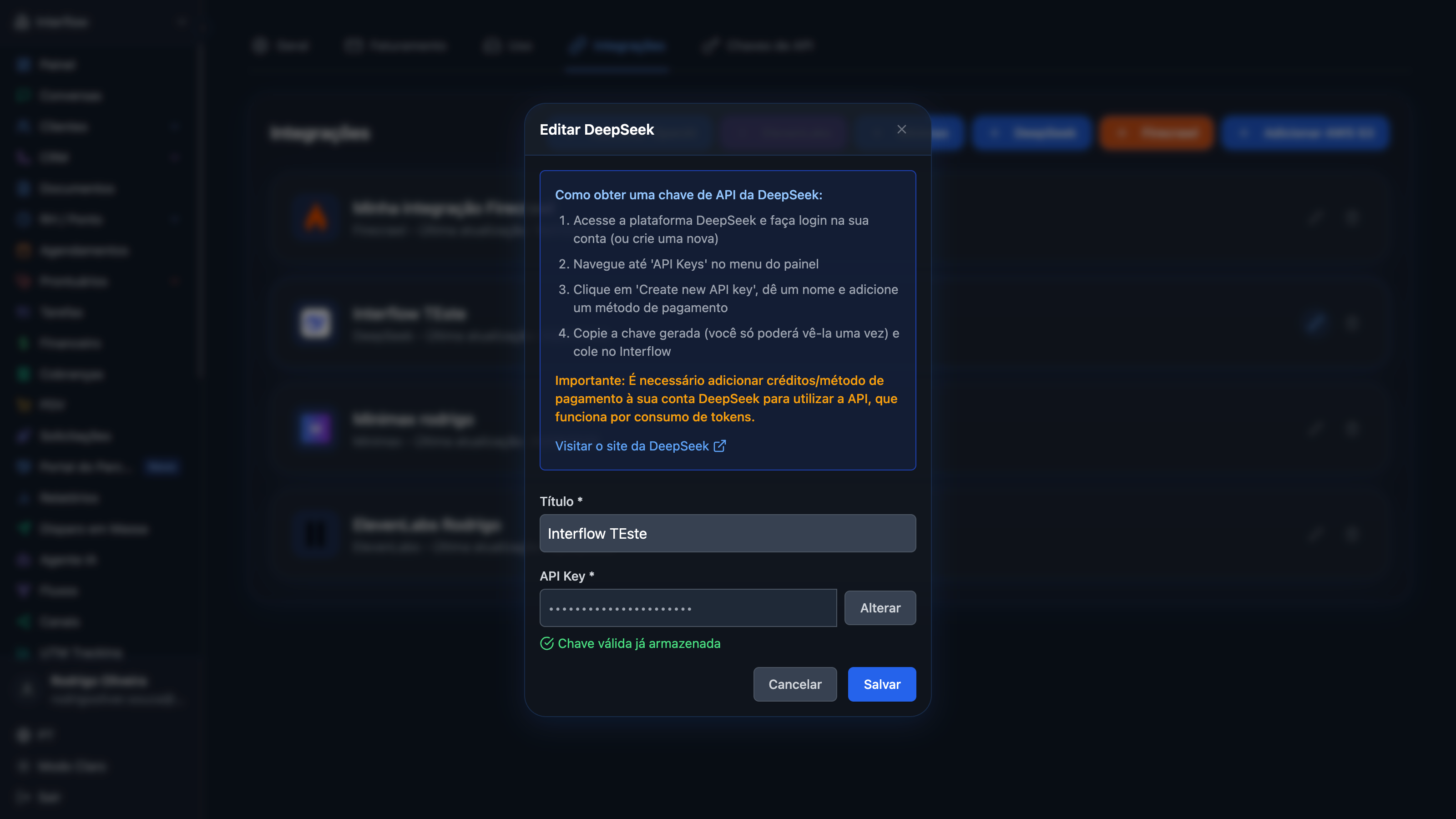
How to get a DeepSeek API key
- Go to the DeepSeek platform and log in to your account (or create a new one)
- Navigate to "API Keys" in the dashboard menu
- Click "Create new API key", give it a name to identify it (e.g., "Interflow") and add a payment method
- Copy the generated key and paste it in Interflow
WARNING
You will only be able to see the key once after creation. Save it in a secure location before closing the window.
Configure in Interflow
You can register your DeepSeek key in two ways:
Option 1: From the Integrations screen
- In Interflow, go to Settings → Integrations
- Click "Add DeepSeek"
- Give the integration a title and paste your API key
- Click Validate and then Save
Option 2: Directly from the Prompt form
- When creating or editing an AI Agent, open the Integration field
- Select "+ Add DeepSeek"
- Fill in the title and API key, validate, and save
- The newly created integration is automatically selected for the current prompt
Available models
| Model | Input (cache miss) | Input (cache hit) | Output | Notes |
|---|---|---|---|---|
| DeepSeek V4 Flash | $0.14 / 1M tokens | $0.0028 / 1M tokens | $0.28 / 1M tokens | Fast and cost-effective, ideal for most use cases |
| DeepSeek V4 Pro | $0.435 / 1M tokens | $0.003625 / 1M tokens | $0.87 / 1M tokens | More capable, recommended for complex tasks |
PRICING SOURCE
Values checked on the official DeepSeek pricing page. Subject to change by DeepSeek without prior notice.
Thinking Mode (reasoning)
Both models support an optional chain-of-thought reasoning mode called Thinking Mode. When a DeepSeek model is selected in the prompt, the form shows a dedicated control:
- Enable/disable Thinking Mode
- Reasoning effort: High or Maximum
With Thinking Mode enabled, temperature is ignored — this is a limitation of the DeepSeek API itself, which doesn't allow combining chain-of-thought reasoning with temperature control.
Where the DeepSeek model can be used
Once you've configured the integration and selected a DeepSeek model in your prompt, it's automatically used in:
- Your flows' AI Agent
- Test Prompt (inside the prompt editing screen)
- Improve Text (when the associated prompt uses DeepSeek)
Need help?
If you have questions about the integration:
- Email: suporte@interflow.chat
- Chat: Available on the platform