
Customer Management
Manage all your customers centrally in Interflow CRM.
Overview
Interflow CRM allows you to manage all your contacts in one place, with complete interaction history, custom fields, and tag segmentation.
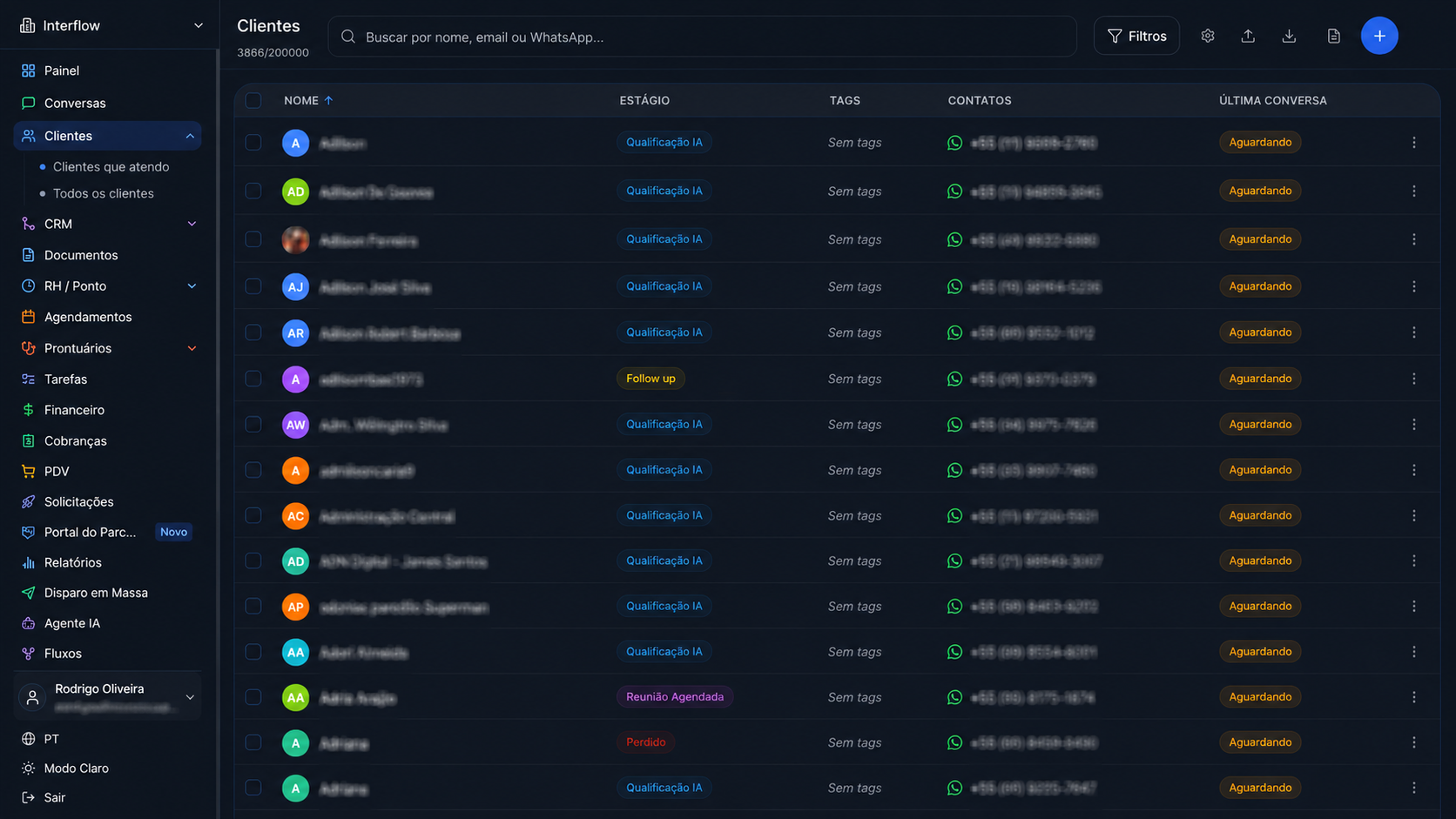
Accessing Customers
- In the main menu, click Customers
- You'll see the list of all registered customers
- Use filters to find specific customers
Customer Registration
Standard Fields
| Field | Description | Required |
|---|---|---|
| Name | Customer's full name | Yes |
| Contact email | No | |
| Phone | Main number | No |
| WhatsApp number | No |
Creating a Customer Manually
- Click "New customer"
- Fill in the fields
- Add tags (optional)
- Click "Save"
Automatic Creation
Customers are created automatically when:
- They start a conversation on any channel
- They are imported via spreadsheet
- They are created via API
Duplicate Customer Blocking
The system automatically detects and blocks duplicate customer creation.
How it works:
- When trying to create a customer with existing data
- System checks existing records
- If duplicate found, shows alert
- Option to view existing customer
- Or merge data into existing
Detection criteria:
| Field | Detection |
|---|---|
| Phone | ✅ Exact (ignores formatting) |
| ✅ Exact (case insensitive) | |
| ✅ Exact (normalized) |
Options when duplicate found:
- 🚫 New creation is blocked
- 🔗 Link to existing record shown
- 🔄 Option to merge data
- ✏️ Option to update existing
💡 Configuration
Automatic merge can be disabled in Settings → Customers → "Allow duplicates".
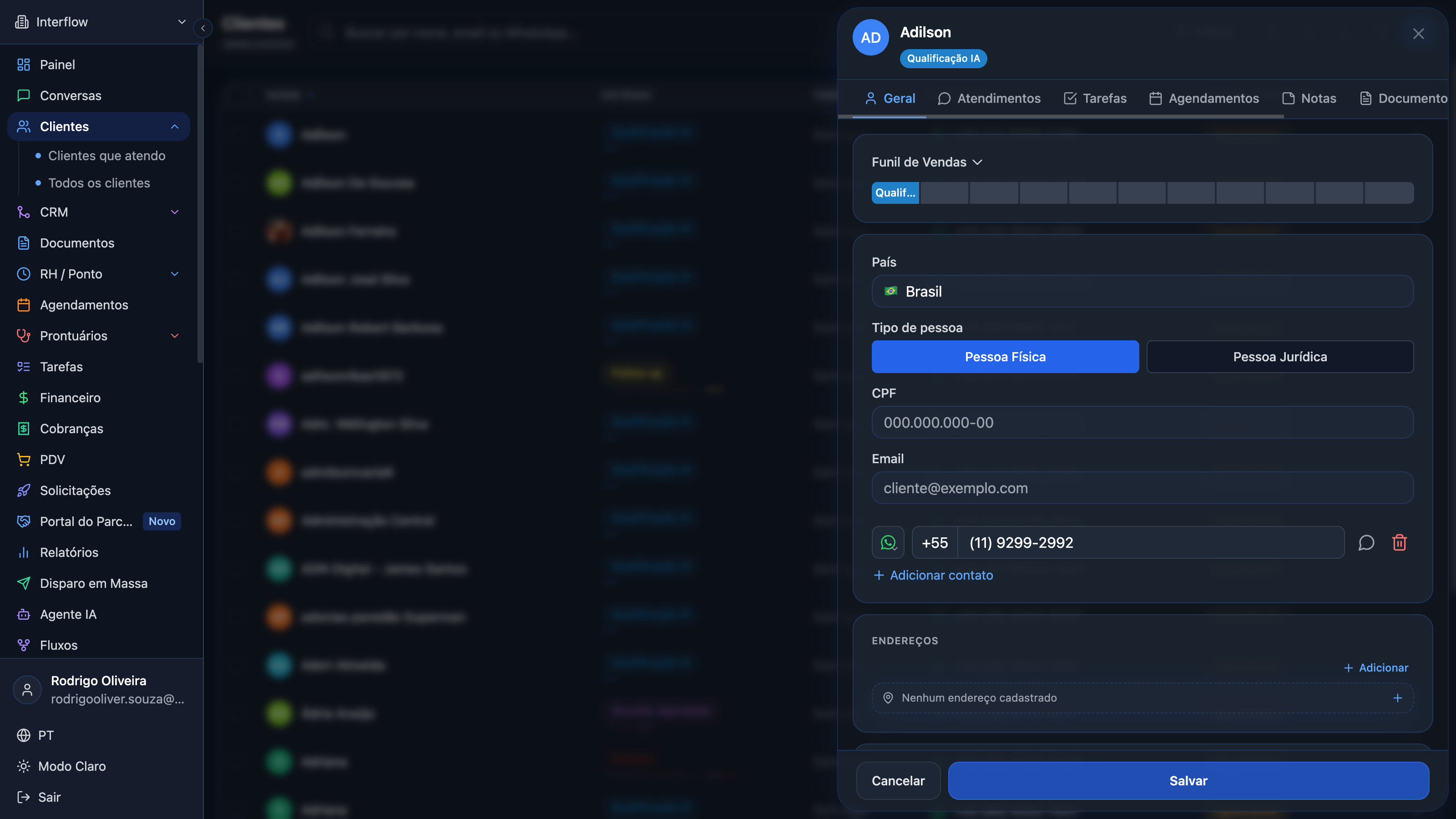
Customer Profile
When clicking on a customer, you access their complete profile:
Information
- Contact data
- Custom fields
- Tags
- Registration date
- Last interaction
Addresses
In customer edit, the Addresses section lets you manage one or more delivery or billing addresses.
What you can do:
- List saved addresses (with default indication)
- Create, edit, and delete addresses
- Enter street, number, complement, city, state, ZIP, and country
- Save GPS coordinates (latitude/longitude) and open in Google Maps
How to add one:
- Open the customer and go to the Addresses section
- Click Add
- Fill in the fields and, optionally, the coordinates
- Save
💡 AI Agent
Addresses can also be written automatically by the Update Customer Address tool — see AI Tools.
History
- All conversations
- Appointments
- Purchases/transactions
- Internal notes
Actions
- Start new conversation
- Schedule task
- Add note
- Edit registration
- Macros — automation buttons at the top of the General tab and in the ⋮ menu (see Customer macros)
Search and Filters
Quick Search
Type in search field to find customers by:
- Name
- Phone
- Tags
Advanced Filters
| Filter | Description |
|---|---|
| Tags | Filter by specific tags |
| Channel | By origin channel |
| Date | By registration period |
| Fields | By custom field values |
| Status | Active, inactive, etc. |
Saving Filters
- Configure desired filters
- Click "Save filter"
- Name the filter
- Access quickly via selector
Restricted Visibility for Agents
Agents see only customers from teams they're assigned to.
Affected areas:
- 📋 Customer list
- 🔍 Customer search
- 📊 Reports (filtered data)
- 📤 Exports (respects visibility)
⚠️ Security
Administrators continue seeing all customers. This setting protects sensitive data between teams.
Customer Import
Via Spreadsheet (CSV/Excel)
- Go to Customers → Import
- Download template spreadsheet
- Fill with your data
- Upload the file
- Map fields
- Confirm import
Customer Export
- Apply desired filters
- Click "Export"
- Select format (CSV, Excel, JSON)
- Download file
⚠️ Sensitive Data
If "Hide Contact Data from Agents" option is active, agents won't see email, phone and WhatsApp in exports.
Advanced Customer Reports
Generate reports with custom groupings and subdivisions:
- In Customers → click "Advanced Reports" 📊
- Click "New Configuration"
- Follow the 5-step wizard:
- Step 1: Upload JSON (export from customer list)
- Step 2: Configure groupings (e.g., by Source, Status)
- Step 3: Configure total column
- Step 4: Configure subdivisions (e.g., reasons for not buying)
- Step 5: Review and save
Features:
- Smart normalization (unifies variations)
- Real-time preview
- CSV export
- Reusable saved templates
See more in Reports.
Bulk Customer Deletion
Administrators and owners can delete multiple customers simultaneously, with the option to also delete all linked chats.
How to use
- Go to Customers and select the desired customers using the checkboxes
- Click "Delete selected"
- In the confirmation modal, check "Also delete all linked chats" (visible only to admin and owner)
- Confirm the deletion
⚠️ Irreversible
Messages, files, and flow sessions of all chats for the selected customers will be permanently deleted. POS orders are kept.
Items per Page
Choose how many customers to display per page in the listing:
- At the bottom of the list, select 10 per page (default) or 50 per page
- The list automatically reloads when you change the value
Sales Funnel
In CRM → Sales Funnel, track customers by stage on a kanban board.
Search customer by name
Use the search field at the top of the funnel to find a customer in any stage:
- Type the name in Search customer by name...
- Review results with stage (badge) and position (
#N of T) - Click a result to open the customer edit modal
- If the card is already loaded in the column, it is also highlighted on the board
💡
Search covers the entire current funnel (not only loaded cards) and respects Only mine and Hide closed.
Changelog: v2026.7.7
Hide closed
Use Hide closed at the top of the funnel to hide customers whose last conversation is Closed (or marked as resolved).
- Open the desired funnel
- Enable Hide closed
- Columns show only pending, in-progress, or no-conversation customers
- Turn it off to see everyone again
💡
This option does not delete data — it only filters the view. It works with Only mine.
Changelog: v2026.7.6
CRM Access Control
Granular control over who can see and access each customer in the CRM.
Team Visibility (Agents)
Agents see only customers from teams they are assigned to:
- 📋 Customer list
- 🔍 Customer search
- 📊 Reports (filtered data)
- 📤 Exports (respects visibility)
ℹ️ Administrators
Administrators continue to see all customers. This setting protects sensitive data between teams.
Permission-based Query
The multi-level security ensures that:
- Agents only query customers they have access permission to
- Reports are automatically filtered according to user profile
- Exports respect the same visibility rules as the interface
Sensitive Data (Privacy)
Protect customer contact information for agents:
- Go to Settings → Customers
- Enable "Hide customer contact data from agents"
- Agents won't see phone, email, and WhatsApp in lists and exports
Customer Merge
When identifying duplicates:
- Select duplicate customers
- Click "Merge"
- Choose which record to keep as primary
- Confirm merge
TIP
Merge keeps complete history from both records.
Custom Fields
Cascade Update in Select Fields
When renaming a custom field option of select type, all records are automatically updated.
How it works:
- Access a customer → Custom Fields
- Click ✏️ next to the field
- Click ✏️ next to the option you want to rename
- Type new value
- Click "Update"
What gets updated:
- ✅ Field definition
- ✅ All customers using that option
- ✅ Shows how many records were affected
Protections:
- 🔒 Detects concurrent edits
- 🚫 Blocks duplicates
- ⚠️ Warns about conflicts
Notes and Tasks
Adding Notes
- In customer profile, go to Notes
- Click "New note"
- Type content
- Save
Notes are visible only to your team.
Creating Tasks
- In customer profile, click "New task"
- Define:
- Title
- Description
- Due date
- Responsible
- Priority
- Save
Next Steps
- Reports - Advanced customer reports
- Customer macros - Automation buttons on the profile
- Settings - Permissions and visibility
- Chat - Integrated service