
Chat Interface
Learn about the Interflow service interface and how to use all features.
Overview
The Interflow chat interface is designed to maximize your service team's productivity, centralizing all conversations in a single screen.
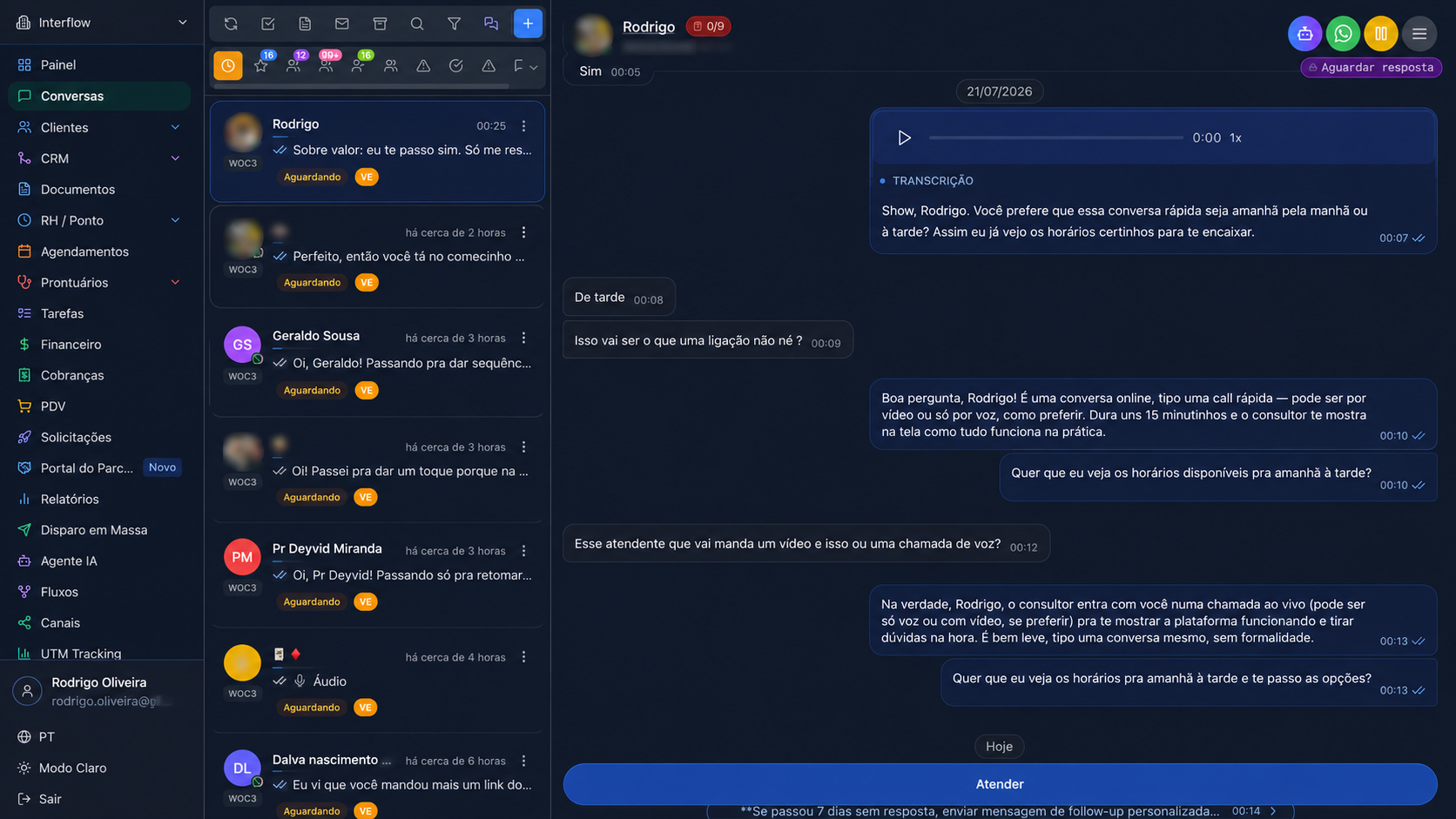
Interface Layout
The chat screen is divided into three main areas:
| Area | Location | Function |
|---|---|---|
| Conversation List | Left | All active conversations |
| Message Area | Center | Message history and sending |
| Customer Panel | Right | Customer information and actions |
Conversation List
Available Filters
- All - All conversations
- Mine - Assigned to you
- Unassigned - Waiting for agent
- On hold - Waiting for customer response
- Closed - Finished conversations
Custom Filters
Create custom filters to organize your conversations:
- Click ⚙️ in the filter bar
- Click "New Filter" or duplicate an existing one
- Configure criteria:
- Teams: Select one or multiple teams
- Tags: Filter by specific tags
- Channels: One or more (WhatsApp, Instagram, etc.)
- Status: In progress, pending, etc.
- Custom fields: customer select, multi-select, date, and date/time (all, blank, or specific values/period)
- Customize name, icon and color (expanded palette available!)
- Set who can see the shortcut: everyone, teams, roles, or users
- Click the counter icon on the filters that should show a number (up to 12 for the organization)
- Save
Tip
You can filter by multiple teams and multiple channels at once — useful for supervisors and teams that operate several WhatsApp numbers. Customer custom fields (select, date, and date/time) and per-team counters are covered in Conversation filters.
Conversation Search
Search conversations by customer's phone number:
- ✅
5511999999999(complete with country code) - ✅
11999999999(with area code) - ✅
999999999(number only) - ✅
+55 11 99999-9999(formatted)
Bulk actions
Select several conversations in the list and apply the same action at once. The bar sits in the list footer.
- In the list, turn on Bulk actions
- Select conversations (or Select all filtered)
- Open Actions and choose:
- Mark as read
- Mark as resolved (pending chats only)
- Change team — updates only the responsible team
Team adjustment, not the official transfer
Change team in bulk actions does not send a notification, create a system message, or change the agent or status. Chats already on the chosen team are skipped. For a real transfer (queue, push, and team flow), use Transfer team on each conversation.
Page Navigation
Navigate directly to a specific page:
- At the bottom of the list, click on the page number field
- Type the desired page number
- Press Enter
Conversation Status
| Icon | Status |
|---|---|
| 🟢 | Active - waiting for service |
| 🟡 | On hold - waiting for customer |
| 🔵 | In service |
| ⚪ | Finished |
Multiple Chats Indicator
When a customer has multiple active conversations:
- 🔴 Badge appears next to customer name
- Shows number of parallel chats
- Click to see list of active conversations
- Quick navigation between chats
Sorting
- By last message date
- By wait time
- By priority
Message Area
Components
- Header - Customer name, channel, status, Quick WhatsApp button
- Pinned Messages - Important messages at the top
- History - All exchanged messages
- Text field - For typing messages
- Attachments - Send files
- Record from text - Turn typed text into audio with system voices
- Emojis - Emoji selector
- Quick replies - Message shortcuts
- AI Commands - AI shortcuts (Ctrl+J)
Pinned Messages
Highlight important information by pinning messages at the top of the chat:
How to pin:
- Hover over the message
- Click on three dots (⋮)
- Select "Pin message"
Features:
- 📌 Messages appear at the top of the chat
- 🔢 Pinned message counter
- 🟡 Yellow background for pinned private notes
- ➜ "Go to message" button (navigates to original)
- 🔄 Real-time updates
How to unpin:
- Click X in the pinned list, or
- Message menu → "Unpin message"
Message Indicators
| Indicator | Meaning |
|---|---|
| ✓ | Sent |
| ✓✓ | Delivered |
| ✓✓ (blue) | Read |
| ⏳ | Sending |
| ❌ | Send error |
Customer Panel
Displayed Information
- Name and photo
- Contact channels
- Tags
- Custom fields
- Conversation history
- Internal notes
- Field indicator - Shows which fields are filled
Registration Field Indicator
Visual showing field fill status:
- ✅ Green icon = Filled field
- ⚠️ Yellow icon = Missing field
- 🔴 Red icon = Required and missing
Available Actions
- Edit customer - Update data
- Add tag - Apply tags
- New note - Add annotation
- View history - Previous conversations
- Create task - Schedule follow-up
Service Actions
Bulk Actions
Execute actions on multiple chats at once directly from the attendance list:
- Apply desired filters (status, tag, channel, agent, team, unread, etc.)
- Click the bulk selection icon (☑) at the top of the list
- Select chats individually or use "Select all filtered" to include all pages
- In the bottom bar, choose:
- Mark as read — clears unread messages in eligible chats
- Mark as resolved — closes only chats with pending status; in-progress chats are ignored
- Confirm the action when prompted (above 10 chats)
💡 Common use
Ideal for clearing queues after bulk campaigns or volume spikes, marking hundreds of conversations in a few clicks.
Create Task from Messages
Select specific messages from a conversation to create a task directly:
- In a conversation's message area, select one or more messages
- In the bottom bar, click "Create Task"
- Fill in the task details (title, assignee, deadline)
- Selected messages are linked to the task as context
Take Conversation
To serve an unassigned conversation:
- Click on the conversation
- Click "Take"
- Conversation will be assigned to you
If there's an active flow, you can choose:
- 🟡 Pause Flow and Attend - Pauses flow, you take over
- 🔵 Continue Flow and Attend - Keeps flow active (duplicate messages!)
- ⚪ Cancel - Don't attend
Assignment by Administrator
Admins can manage assignments without entering each conversation:
- In conversation list, click menu (⋮)
- Select "Transfer Agent/Team"
- Choose:
- No agent: Conversation stays pending in queue
- Specific agent: Directly assigned
Transfer Conversation
To pass a conversation to another agent:
- Click transfer icon
- Select destination (agent or team)
- Add a note (optional)
- Confirm
Archive Conversation
You can archive conversations that are "In progress":
- Archive active conversations to organize your list
- When customer sends new message, conversation is automatically unarchived
- No important message is lost
Close Service
When completing a service:
- Click "Close"
- Select closure reason
- Field suggestion: System suggests unfilled fields
- Fill suggested fields (optional or required)
- Add notes (optional)
- Confirm
Internal Notes
Add annotations visible only to the team:
- In customer panel, click "Note"
- Type annotation
- Save
Notes appear in history with visual highlight.
Deleting Private Notes
You can delete notes sent by mistake:
- Hover over the note
- Click menu (⋮)
- Select "Delete message"
- Confirm
Rules:
- ✅ Only author can delete
- ✅ Admins can delete any note
- ❌ Customer messages cannot be deleted
- 🕐 Log preserved for audit
Message Shortcuts
Type / followed by the shortcut name to insert a quick reply. Shortcuts with multiple messages show a badge in the list and open a review modal in chat, where you can edit texts, adjust intervals, and send the entire sequence at once.
Full guide: Message Shortcut Sequences
Configure shortcuts at Organization → Message Shortcuts.
Keyboard Shortcuts
| Shortcut | Action |
|---|---|
Enter | Send message (on desktop) |
Shift+Enter | New line (on desktop) |
Enter (mobile) | New line — send with the button |
Ctrl+Enter / ⌘+Enter | Send in the expanded editor |
Esc | Close conversation |
/ | Open quick replies |
Ctrl+K | Search conversation |
Ctrl+J | Open AI commands |
When the text goes past about 6 lines, use the expand icon for a larger editor (full screen on mobile), with bold, italic, emoji, and AI improve.
Text Enhancer (Ctrl+J)
Improve your messages with AI directly from text field:
- Press
Ctrl+Jor type/ - Select desired action (improve, formalize, translate, etc.)
- AI processes and inserts result
Available actions:
- Improve - Improves clarity and grammar
- Formalize - Makes text more professional
- Simplify - Simplifies complex texts
- Translate - Translates to another language
💡 Custom Commands
Create your own AI commands! See full documentation at Text Enhancer.
Quick WhatsApp Button
Open customer's WhatsApp directly from chat with automatic actions:
- In chat header, click green WhatsApp button
- New tab opens with pre-configured message
- Automatic actions are executed (field, funnel, tag)
⚠️ Important
Button only appears in WhatsApp channel chats (WAHA, W-API, Official WhatsApp).
Configure in Settings > Service > Quick WhatsApp Button.
Internal Chat (Communication Between Agents)
Communicate directly with other team members without creating groups, via the Internal Chats page or the Chats page header / floating widget.
Direct Chat (DM)
- Open Internal Chats (or use the + button in the Chats header)
- Select "Direct Chat"
- Choose the agent you want to chat with
- The conversation opens in the panel or the floating widget
ℹ️ Behavior
If a conversation with the selected user already exists, the system opens the existing one instead of creating a new one. Internal chats automatically appear in the floating widget for both participants.
Audio and read status
- Record audio — use the microphone icon in the message field (internal DMs and groups)
- Mark as read / unread — in the Internal Chats list, open the conversation
⋯menu - When opening the chat — pending messages are marked as read automatically
- Seen status (DM) — in direct chats, opening the conversation shows messages as read for the sender (blue ticks)
💡 Tip
If you mark a conversation as unread while it is open, the status stays until you close and reopen it or mark it as read again.
Floating Widget
Internal chats are pinned in the floating widget:
- Persistence — widget state is saved and synchronized across devices
- Auto-pin — when added to an internal chat, it appears automatically in the widget
- Custom scroll — displays all pinned chats without item limits
- Fixed order — chats always appear in the same order
Internal Groups
When creating an Internal Group, configure permissions:
- Allow members to delete the group — when enabled, any member can delete; otherwise, only group admins can
Internal Chat Notifications
- Title with sender name:
Name · Internal Chat(DM) orName · Group Name(group) - Individual unread count per user
- Sender doesn't receive notification for their own message
WhatsApp group notifications
In busy external groups, each user can turn off push and sound only for themselves. The conversation and the unread badge stay.
Guide: WhatsApp group notifications
Next Steps
- System voices - Audio from text in the conversation
- Text Enhancer - Custom AI commands
- AI Agents - Autonomous AI for service
- Schedule - Integrated appointments
- Settings - Customize interface