
WhatsApp WAHA
Connect your WhatsApp via QR Code for simplified service.
Overview
WAHA integration allows you to use your regular WhatsApp number on the Interflow platform. It's a practical solution for small and medium businesses.
Requirements
- [x] Active WhatsApp number
- [x] Phone with WhatsApp installed (for initial scanning)
Advantages
| Feature | Description |
|---|---|
| Simple | Connect via QR Code in minutes |
| No Meta costs | No per-conversation charges |
| Groups | WhatsApp groups support |
| Full media | Images, videos, audios, documents |
| Sync | Recover historical messages |
Limitations
ATTENTION
This integration is not official from Meta and may be subject to blocks. Use in moderation and follow best practices.
- Does not support approved templates
- Risk of blocking if used for spam
- Needs to keep session active
Configuration
Step 1: Add Channel
- In Interflow, go to Settings → Channels
- Click "Add channel"
- Select WhatsApp (WAHA)
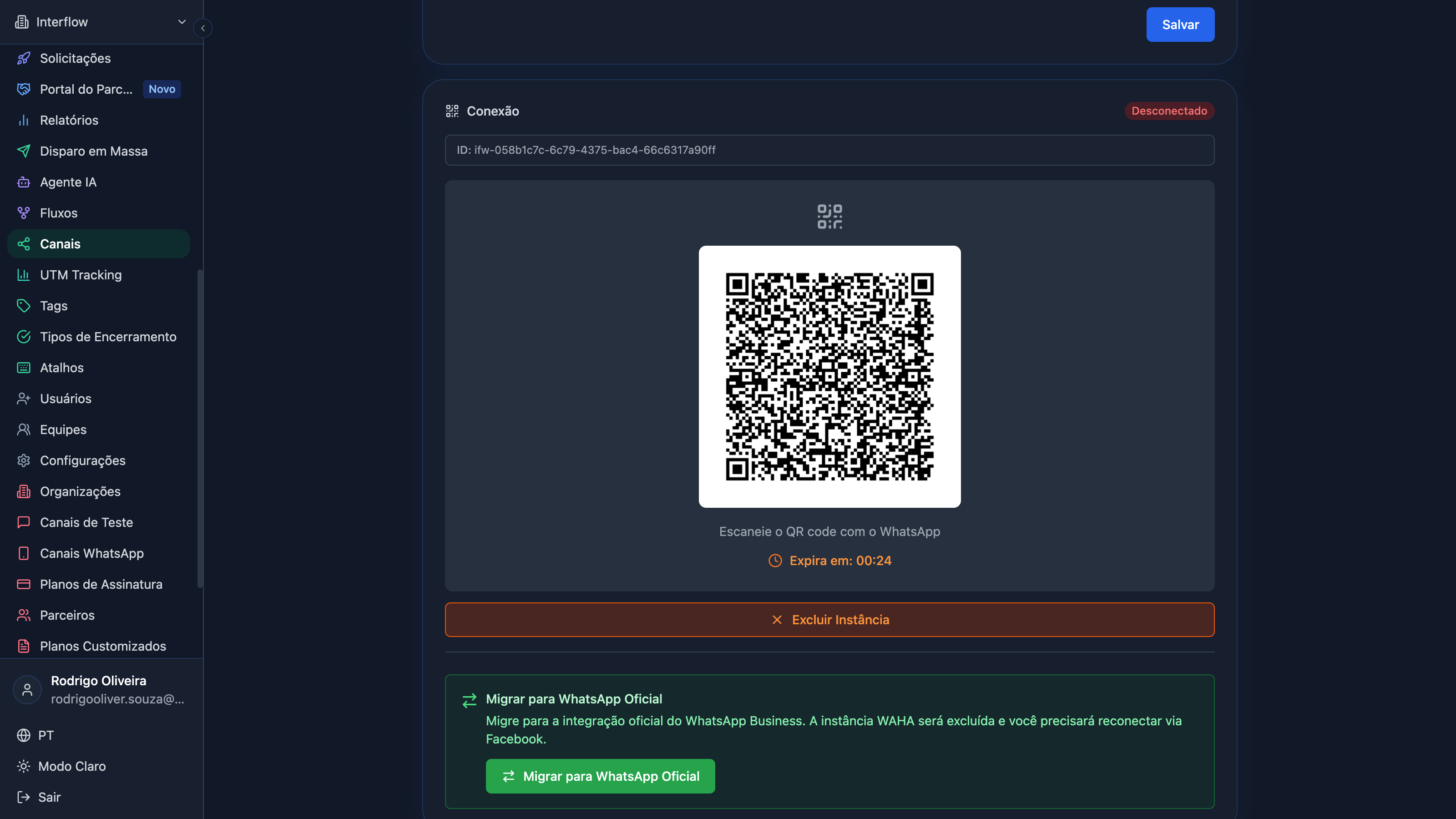
Step 2: Scan QR Code or use phone number
On the channel screen you can connect in two ways:
- QR Code — scan with WhatsApp on your phone
- Phone number — request a pairing code and enter it in WhatsApp
For QR Code:
- Open WhatsApp on your phone
- Go to Settings → Linked devices
- Click "Link a device"
- Scan the QR Code
Step 2.1: Passkey verification (when WhatsApp asks)
Some WhatsApp accounts require a passkey when linking a new device. In that case, after the QR Code or pairing code, Interflow shows the verification step on the channel screen itself.
Browser extension
Verification uses a browser extension (required because confirmation must happen on the WhatsApp Web origin). Install it before connecting if the banner appears:
How to finish
- When the screen asks for security verification, click Confirm connection
- A WhatsApp Web tab opens with a confirmation card — click and use your device authenticator (Touch ID, Windows Hello, security key, etc.)
- In some cases WhatsApp shows a 4-digit code on the phone: check that it matches the screen and click The code matches
- Wait until the status changes to Connected
Tip
Not every account asks for a passkey. If the channel connects with only the QR Code or pairing code, no extra step is needed.
Step 3: Confirm Connection
After scanning (and completing the passkey step, if requested), status will change to Connected. You can now receive and send messages through Interflow.
Keeping Session Active
To avoid disconnections:
- ✅ Keep phone connected to internet
- ✅ Don't manually disconnect the device
- ✅ Avoid using same number on other services
- ❌ Don't logout from WhatsApp on phone
Message Sync
Recover historical WhatsApp messages that didn't enter automatically.
How to use
- Open a WAHA chat
- Click on menu (⋮) → "Sync Messages"
- Configure the period:
- Start Date and End Date
- Maximum limit: 3 days per sync
- Click "Sync"
What happens
- ✅ Fetches messages from selected period
- ✅ Syncs with original timestamp
- ⏭️ Ignores existing messages
- ✅ Updates correct status (sent, delivered, read)
💡 When to use
Useful when you reconnected the channel and want to recover conversations that happened while disconnected.
WhatsApp Groups
Receive and respond to messages from WhatsApp groups.
How it works
- 💬 Groups appear in conversation list
- 👤 Identifies who sent in the group
- ↩️ Respond directly to group
- 📊 Complete history preserved
Advanced Group Features
Add Participant as Customer
- Open the group chat
- Find a message from a participant (left side)
- Click the menu (⋯) on the message
- Select "Add as customer"
- Complete registration and start a private conversation
Delete Messages from Others
Group administrators can delete inappropriate messages from other participants:
- Click the menu (⋯) on the message
- Select "Delete message"
Group Photo
The group photo is automatically displayed in the chat header.
Participant List
- In the group chat header, click "Participants"
- View all members
- Use "Add as customer" for those with available numbers
ℹ️ Privacy (Meta)
Some participants appear only with an identifier (@lid due to Meta policies). In those cases, use the message menu when the participant sends something in the group.
Block Media in Groups
Prevent receiving media (images, videos, etc.) in groups:
- Go to Settings → Channels → your WAHA channel
- Enable "Block media in groups"
Transcribe group audio
By default, group audio is not transcribed. To enable:
- With Enable groups on, open your WAHA channel settings
- Enable "Transcribe group audio"
Details for customer/agent options: Audio transcription.
Close Group Conversation
You can close/resolve group conversations the same way as individual chats.
Permissions
| Setting | Description |
|---|---|
| Enable groups | Admin can enable/disable per channel |
| Block media | Prevents receiving files in groups |
| Transcribe group audio | Opt-in; off by default (groups rarely use AI) |
Limitations
- Only messages received after connection
- Cannot create groups through platform
- Admin needs to add number to group
Auxiliary Channel for WhatsApp Official
If you use WhatsApp Official (Meta API), configure a WAHA auxiliary channel to overcome its natural limitations.
What it's for
| Official Limitation | Solution via Auxiliary Channel |
|---|---|
| Doesn't record messages sent from phone | Captures echoes (fromMe=true) and records in history |
| 24h window expires and blocks free messages | "Send via Auxiliary Channel" button appears in chat footer |
| Doesn't support groups | Auxiliary channel can receive/reply to groups |
| Doesn't expose contact profile photos | WAHA fetches the photo automatically |
How to configure
- Go to WhatsApp Official channel settings
- Scroll to WAHA Auxiliary Channel section
- Click "Add WAHA auxiliary channel"
- Scan the QR code with the phone's WhatsApp — must be the same number as the official channel, in Coexistence Mode
- Adjust settings:
- Listen to customer messages — disabled by default (avoids duplication with official)
- Listen to my messages — enabled by default to capture echoes
- Enable groups and Block media in groups
Sending outside the 24h window
- When the window expires, the chat footer shows "Use Template" and "Send via Auxiliary Channel"
- Click "Send via Auxiliary Channel"
- The full message input appears (text, files, audio, emoji)
- The message is sent via WAHA and recorded normally in the chat history
💡 Note
The auxiliary channel doesn't appear in the general channel listing — it's only visible inside the official channel settings.
New-contact restriction
WhatsApp can block first contact (a number that channel has not talked to yet). The channel stays connected. Do not restart, log out, or generate a new QR — that makes the restriction worse.
What you see
- On the channel card, Connected stays green
- An amber badge says new contacts are blocked (and until when, if WhatsApp reports it)
- The same banner appears on every tab of the channel screen
What Interflow does
- Stops sending to new numbers
- Keeps serving existing conversations
- Pauses WAHA campaigns immediately (they do not resume by themselves when the restriction ends)
- Does not retry the send WhatsApp refused
Extra daily limit (optional)
Useful when several people share the same number and it is hard to count first contacts for the day.
- Open Channels → WAHA channel → settings
- In Optional extra daily new-contact limit, leave 0 (default) to follow WhatsApp’s cap only
- Or set a number: when it is reached, Interflow stops new 1:1s for that day; existing chats keep working. The counter resets the next day
Changelog: v2026.8.10
Best Practices
To avoid WhatsApp blocks:
✅ Do
- Send messages only to those who authorized
- Respond quickly to customers
- Use professional language
- Have a service schedule
❌ Avoid
- Sending unsolicited mass messages
- Using aggressive promotional language
- Sending many messages in sequence
- Starting conversations with strangers
Reconnection
New-contact restriction
If the channel is connected and you only see the amber new-contact warning, do not reconnect. Wait for WhatsApp to lift it.
If the channel was already connected and goes offline, the owner and admins get a push with the channel name and number. The alert waits a few minutes (short restarts do not fire it) and does not send if you disconnect or delete the instance in the form, or if only QR scanning fails.
Changelog: v2026.9.1
If the channel disconnects:
- Check status in Channels (or open it from the push)
- Click on disconnected channel
- Scan new QR Code
- Wait for reconnection
TIP
If disconnections are frequent, check phone's internet connection and consider migrating to WhatsApp Business API.
Troubleshooting
QR Code doesn't appear
- Clear browser cache
- Try in incognito window
- Check for firewall blocks
The screen asks for a passkey, but the button is disabled
- Install the browser extension shown in the banner
- Reload the channel page after installing
- Use Chrome, Edge, Brave, or Firefox (extension detection depends on the browser)
Passkey confirmation failed
- Complete the step in the WhatsApp Web tab (user interaction is required)
- Do not close the tab before authenticating
- If WhatsApp shows a 4-digit code, confirm it matches Interflow
Frequent disconnection
- Check phone's internet
- Update WhatsApp to latest version
- Avoid multiple connected sessions
Messages don't arrive
- Confirm number is correct
- Verify channel is connected
- Check if webhooks are configured
Next Steps
- Chat Interface - Use Quick WhatsApp Button
- Flow Automation - Automate services
- AI Agents - AI to respond to groups
- WhatsApp Business - Migrate to official API